Patreon Downloads on iPhone and Android: Transfer MP4 and MP3
Want Patreon video or audio on your phone? Learn the desktop Chrome download and phone transfer workflow, plus offline checks and important limits.
To put a Patreon video or audio download on an iPhone or Android phone, first save an accessible post on a computer using Chrome, then move the finished MP4 or MP3 file to your phone. Patreon Media Downloader is a Chrome extension, not a phone app. It can save supported video and audio from posts your account already opens, but it cannot unlock restricted content or download every kind of attachment.
If the audio file never downloads on your computer, start with the Patreon audio download fixes before attempting a phone transfer.
This guide separates downloading from transferring, explains reliable phone transfer options, and shows how to confirm that a file is truly available offline.
Why the computer comes first
A Chrome extension and a mobile browser are not interchangeable. The documented Patreon Media Downloader workflow uses a red download button on a Patreon post opened in Chrome. It saves supported video as MP4 and audio as MP3. Do not assume that installing a different mobile browser, pasting a post URL into an unfamiliar website, or opening Patreon in a phone app provides the same extension functionality.
There is also a difference between a Patreon app's own offline features and a portable media file. An item listed inside an app may be available for offline playback there without being an MP3 or MP4 you can move to another player. A bookmarked post or a cloud shortcut is not proof that the file has been downloaded locally.
Use the general Patreon downloader guide if you have not yet installed the extension. If the red button is missing, the video download troubleshooting guide helps you distinguish an access problem from unsupported media.
Download a file you are permitted to keep
- On your computer, open Chrome and sign in to the Patreon account that can already view the post.
- Open the specific post. Check that it contains supported video or audio, rather than an image, file attachment, shop item, or embedded YouTube video.
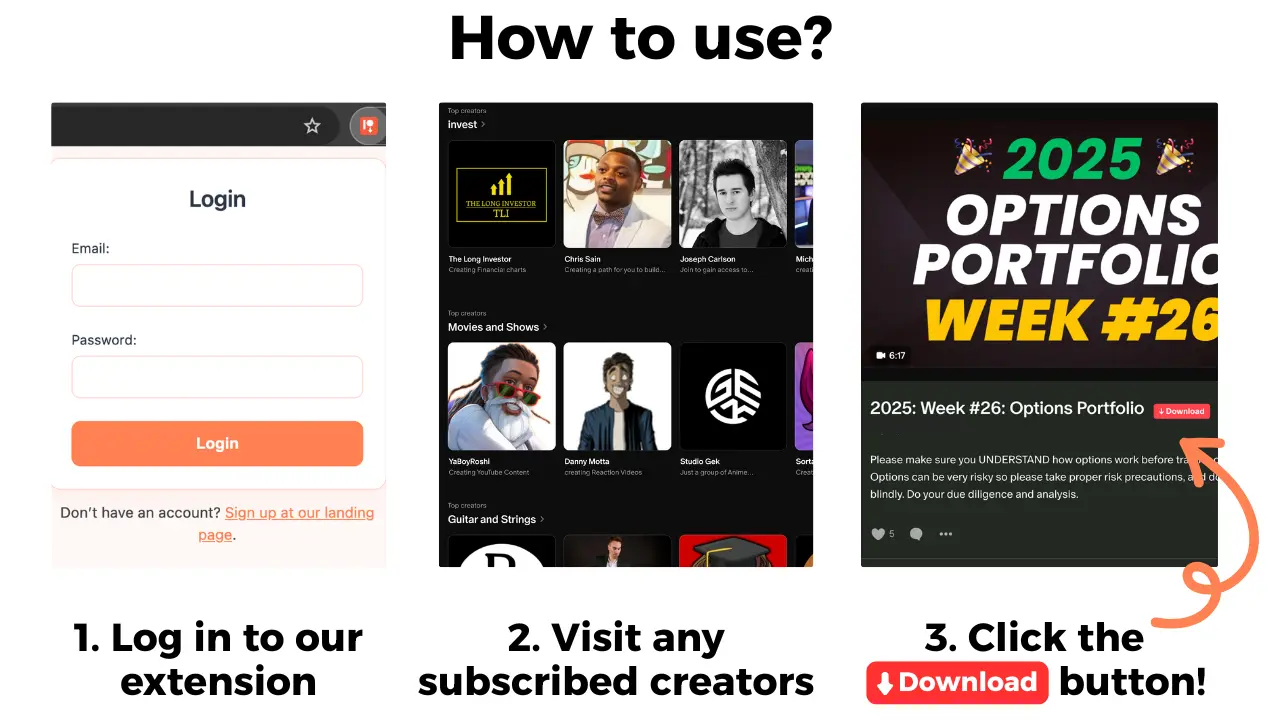
- With Patreon Media Downloader installed, use the red download button on the post.
- Save the supported video as MP4 or audio as MP3, then find the completed file in your computer's downloads folder.
- Play a few seconds locally before transferring it. A filename alone does not prove the download completed.
The extension charges 5 credits for a video and 3 credits for an audio file. Its 7-day trial includes 15 free credits, with no upfront payment, enough for up to three videos or five audio files. The account moves to the Standard plan at $29.90 per month after the trial unless you cancel. These credits pay for the extension's supported downloads; they do not purchase Patreon membership access.
Check the creator's rules before making a personal offline copy. Being able to view a paid post does not grant permission to redistribute it, and moving the file to your own phone does not change those rights.
Choose a transfer method for your phone
The best method depends on your computer, phone, available storage, and whether you want to avoid uploading creator media to a cloud service. Transfer the finished file, not just its Patreon URL.
| Phone and situation | Practical transfer | What to verify |
|---|---|---|
| iPhone with a Mac nearby | AirDrop a permitted MP4 or MP3 | Accept the file and locate it in Files or the receiving app |
| iPhone with any computer | Upload to iCloud Drive, then save a local copy in Files | Confirm the download icon is gone before going offline |
| Android with Windows, Mac, or Linux | Transfer using a suitable USB data cable | Choose file transfer mode and check the destination folder |
| Android with any computer | Upload to Google Drive, then download to the device | A cloud preview alone is not an offline copy |
| Either phone with limited storage | Transfer only selected episodes or lessons | Check file size and free space before copying |
Apple documents iCloud Drive uploads and downloads and Mac to iPhone file sharing. Google's Android file transfer instructions describe account-based and USB methods. Menus can vary by operating system version and by the app that opens the file.
For an iPhone, AirDrop can be convenient when you have a Mac; iCloud Drive is more flexible across computers but requires enough cloud storage and a deliberate local download. For Android, USB transfer can keep the file off cloud storage, while Google Drive may be easier when you do not have a suitable cable.
Make sure offline playback really works
After transfer, open the file in a phone app that supports its format. MP4 is the video format produced by the extension; MP3 is its audio format. The exact player depends on your device. A local Files or file manager entry is a better starting point than returning to the Patreon post URL.
Turn on airplane mode, then try opening the file again. If playback stops because a cloud app needs to stream it, download the file to device storage and repeat the test. Do not delete the computer copy until the phone version opens, plays for a while, and shows the expected duration.
Organize files by creator and course or podcast series. Use descriptive names such as a lesson number and episode title, but avoid putting sensitive membership details in shared folders. Keep enough free storage for the entire file, not just its preview image.
What will not work, and how to diagnose it
A locked post remains locked. The extension cannot download Patreon shop products, file attachments, images, or embedded YouTube videos. It is not a bulk archive service or a way to bypass a creator's membership rules. For an image you can view, use the browser's Save Image As command separately.
| Symptom | Likely distinction | Next check |
|---|---|---|
| No red button in Chrome | Access or unsupported media | Check the post type and whether your account opens it |
| MP4 or MP3 is missing on computer | Download did not complete or file location differs | Inspect Chrome downloads before transferring |
| Phone sees a file but cannot play it | Incomplete copy or incompatible player | Compare file size and try a compatible local app |
| File plays online but not offline | Cloud preview instead of local copy | Save to device storage and retest in airplane mode |
| Post link opens a sign-in screen | Link is not the downloaded media | Open the transferred MP4 or MP3 file instead |
If you plan to cancel a membership, read the access checklist before canceling Patreon. The access end date depends on the membership arrangement; transferring a link at the last minute does not preserve access to the post.
If you are choosing a listening method rather than transferring a file, compare Patreon app downloads, private RSS, and MP3 first.
The short version
Use desktop Chrome to download supported Patreon post video or audio that you can already access, then transfer the finished MP4 or MP3 to your iPhone or Android phone. Test the local copy with internet disabled, keep creator permissions in mind, and do not confuse an in-app offline item or cloud shortcut with a portable file.