Patreon Podcast Offline: App, RSS Feed, or MP3? (2026)
Listen to Patreon podcasts offline with the app, private RSS, or a permitted MP3. Compare what each method saves, where episodes go, and what happens when access ends.
To listen to a Patreon podcast offline, choose the kind of copy you need. The Patreon mobile app can store eligible audio posts for playback inside the app; a creator-enabled private RSS feed lets a compatible podcast app manage episodes; and supported audio posts can be saved as MP3 files with Patreon Media Downloader when your account already has access. None of these options unlocks posts you cannot view.
If an episode fails to save or an MP3 will not play, the audio download troubleshooting checklist separates app, RSS, and Chrome problems.
This guide compares the three methods, explains how to test a download before a journey, and shows what may change when your membership ends.
First decide whether you need an episode or a file
An episode downloaded inside a listening app is not necessarily an MP3 in your phone's Files folder. An RSS subscription is a private link that tells a podcast app which episodes your membership can access. A portable MP3 is a separate local file you can open in a compatible player, subject to the creator's permissions.
If you just want to listen on the train, the Patreon app may be sufficient. If you want episode organization and podcast playback controls, private RSS may be more convenient. If you need a normal audio file for a permitted personal offline copy, the MP3 route is different.
A bookmarked post, a streamed episode, or a cloud-only shortcut can look available while still needing an internet connection. Test the actual episode, not merely its title in a list.
Option one: Download audio inside the Patreon app
Patreon's mobile audio guide describes the Library tab and its Automatic downloads and Delete finished downloads settings. Older app versions may show different menus. This is a useful first choice because you can stay inside the app you already use for your membership.
- Open the Patreon app and sign in to the account with access to the creator.
- Open the audio post you want to hear later.
- In Library settings, check whether Automatic downloads is enabled; if your version offers a manual download action, use it for the episode.
- Return to Library and verify the episode is stored for offline playback, not merely bookmarked or listed as recently viewed.
- Turn off internet access and test playback.
This method is for offline listening inside Patreon, not a promise of an exportable MP3. Controls and available posts may change. If the post has not downloaded, saving its bookmark or copying its URL does not create an offline file. Also check whether you are viewing an audio post rather than a video or an external player.
Option two: Add the creator's private RSS feed
Private RSS works only when the creator has enabled podcast distribution for members. Patreon explains that the creator must add episodes to a podcast with RSS enabled; an ordinary audio post is not automatically a podcast episode. See Patreon's RSS explanation.
- On the creator's Patreon page, look for the Podcast icon or Membership area labelled Listen in other podcast apps.
- Copy your private RSS link without sharing it with anyone.
- In a compatible podcast app, find its option to follow a show by URL and paste the link.
- Use that app's download control for the episodes you want offline.
- Confirm the particular episode is stored, then try playback without internet.
Patreon offers Apple Podcasts instructions. Other apps label the import command differently, and not every app accepts private feeds. Some keep only the newest episodes downloaded, so check the app's storage settings.
Your private feed link is tied to your membership. Patreon warns against sharing it and may reset a link that appears to be shared. External audio links, file attachments, and shop products are not automatically included in the podcast feed.
Option three: Save a permitted MP3 from an audio post
First check whether Patreon displays the creator's own audio download link. Patreon says creators can control whether their audio posts show download links; use the built-in option when it is available and permitted. See Patreon's audio download settings.
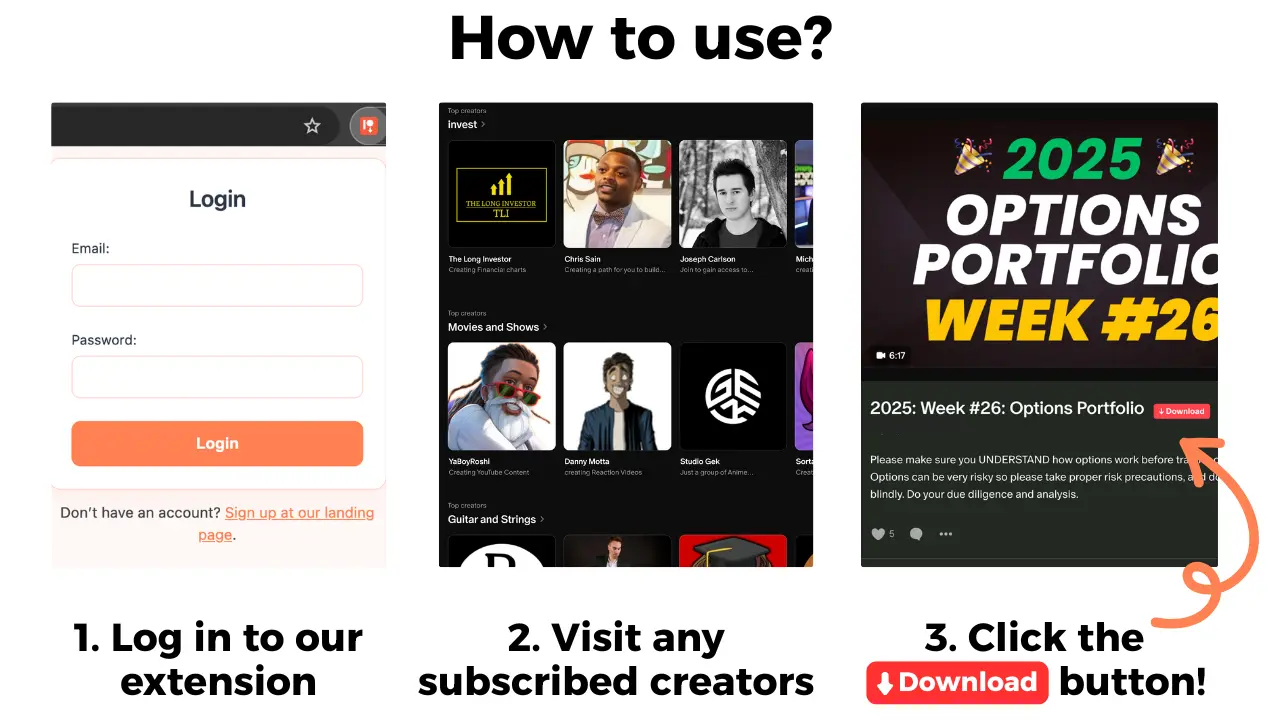
For supported posts without a suitable built-in file option, Patreon Media Downloader is a desktop Chrome extension that adds a red download button on posts your account can already open. It saves supported audio as MP3 for 3 credits per file and supported video as MP4 for 5 credits. It is not a mobile podcast app.
- Open desktop Chrome and sign in to your Patreon account.
- Visit the accessible audio post and check that it is not a shop product or file attachment.
- Use the extension's red download button to save an MP3.
- Open the completed file from your computer's downloads folder.
- If you need it on your phone, follow the phone transfer guide.
The extension offers a 7-day trial with 15 free credits, enough for five audio files or three videos, with no upfront payment. After the trial, the account becomes Standard at $29.90 per month for 100 credits unless canceled; Pro is $39.90 per month for 150 credits. These credits do not buy access to locked Patreon posts.
Compare the three listening methods
| Method | Best use and main limit |
|---|---|
| Patreon app | Offline audio in Patreon; not a portable MP3 |
| Private RSS | Podcast player; creator must enable the feed |
| MP3 file | Portable audio; only supported accessible posts |
Start with Patreon when you only need offline listening. Choose RSS if the creator offers a podcast and you prefer a podcast player. Choose MP3 when you specifically need a permitted standalone file rather than an entry in an app.
For the wider picture of supported formats and costs, read the Patreon downloader guide. If the extension button is missing, verify access and media type before retrying.
Fix missing episodes and understand membership expiry
The RSS feed shows fewer episodes than the creator page. Confirm that the creator added those posts to an RSS-enabled podcast. External audio links, attachments, and shop products are not automatically included. A missing episode is not necessarily a podcast app error.
An episode plays online but fails in airplane mode. It may have streamed rather than downloaded, or the app may have removed an older cached copy. Recheck Library and its download settings while online, confirm the episode is actually stored, and repeat the offline test.
The MP3 is missing or will not play. Check Chrome's download list and test the saved file before transferring it. The extension cannot download images, attachments, shop products, locked posts, or embedded YouTube videos. It cannot fix an inaccessible post.
You plan to cancel Patreon. Patreon says a private RSS feed stops updating when membership access ends. Previously cached episodes might remain in some apps, but this is not guaranteed. Access end dates also depend on the billing model. Use the membership cancellation checklist before relying on saved media.
A personal download does not grant permission to redistribute an episode. Keep your RSS link private and follow the creator's rules for offline copies.
If you also have a video post and wonder whether its URL needs conversion, compare MP4 downloading with file conversion before using a separate conversion service.
The short version
For most listeners, start with the Patreon app's offline download settings. Use private RSS when the creator offers a podcast and you prefer a podcast player; use a supported MP3 download when you need a permitted standalone file. Whatever you choose, test playback with internet off before traveling.