Watch Downloaded Patreon Videos on a TV: Cast, AirPlay, HDMI (2026)
Want to play a Patreon MP4 on your television? Compare Chrome casting, AirPlay, and HDMI, learn what works offline, and fix common audio and playback problems.
You can watch an authorized Patreon MP4 download on a television using a compatible computer and TV. Desktop Chrome can cast a local file to a supported Google Cast receiver, a Mac can share video with an AirPlay-compatible television, and an HDMI cable can connect a computer directly. These are playback functions of other devices, not TV features built into Patreon Media Downloader.
First confirm you have a complete local MP4 from a post you are allowed to view. This guide helps you pick a method, check offline requirements, and resolve common picture or sound problems without bypassing a creator's permissions.
Check whether you have a real file
A completed MP4 in your computer's downloads folder is different from a video playing on a Patreon webpage. An item described as offline inside the Patreon mobile app is also not necessarily a portable file. A television cannot be assumed to browse an app's private storage as if it were a normal folder.
Find the file through Chrome's Downloads list. Use the option to show it in the operating system's folder, then open it with a trusted player. Let it run beyond the first few seconds and listen for audio. If it does not work locally, connecting a television will not repair it. Our guide to finding Patreon downloads in Chrome covers the folder checks.
Look at the format, not just the filename. An HTML page renamed to end with .mp4 is still an HTML page, and a browser shortcut is not a playable video. A legitimate MP4 can also contain codecs a specific television cannot decode. Keeping the original file helps you isolate connection trouble from a faulty source.
Prepare an authorized MP4 before casting
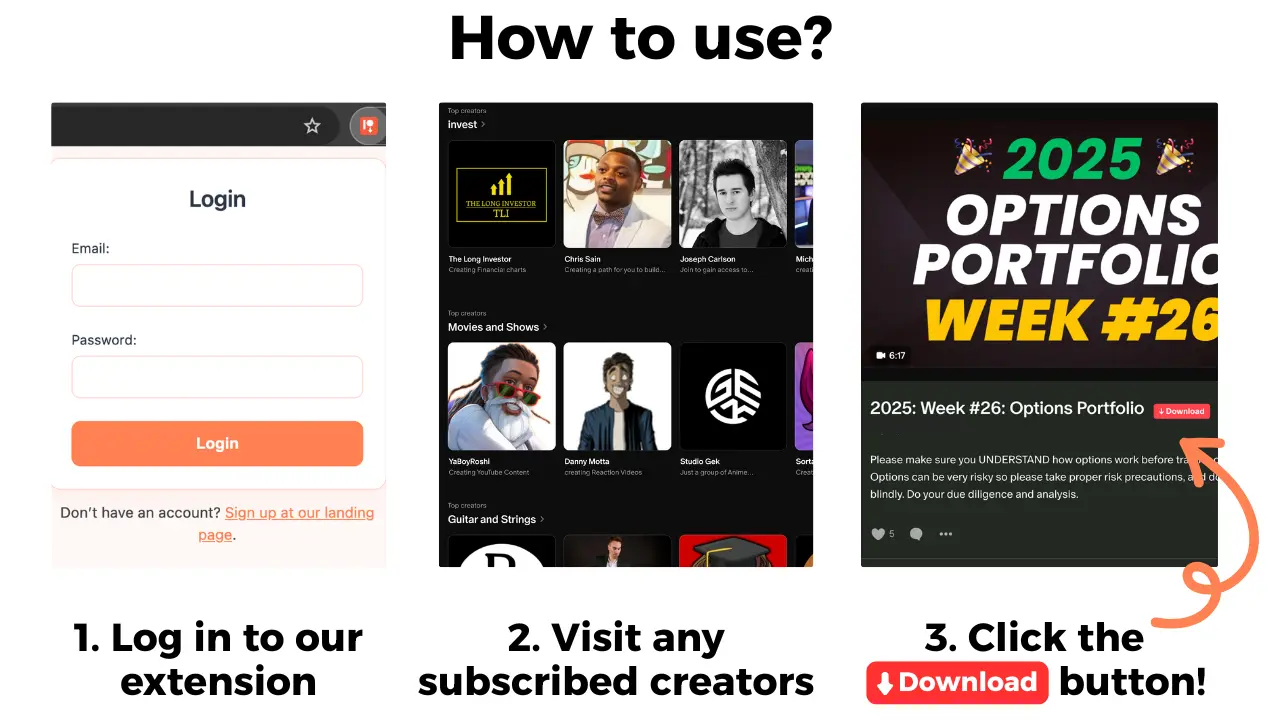
Patreon Media Downloader is a Chrome extension that adds a red download button to Patreon posts you can already access. For supported posts, it saves video as MP4 for 5 credits per file. Supported audio can be saved as MP3 for 3 credits. Its documented free trial lasts 7 days and includes 15 credits, with no upfront payment; unless cancelled, the account becomes the Standard plan after the trial.
The extension does not download locked posts, embedded YouTube videos, images, shop products or file attachments. The verified product information does not promise casting, AirPlay, HDMI output, a TV app, automatic subtitles, batch export, or repairing a video. It produces an eligible file; your own computer and TV handle playback.
A download is not the same as converting an unsupported media stream. If the original post cannot be downloaded within the verified scope, consult the creator's official viewing choices rather than an unknown web converter. For format questions, read the Patreon downloader versus MP4 converter guide.
Cast a file from desktop Chrome
Google's Chrome Cast help explains how to cast a local file opened in a Chrome tab. You need a compatible television or receiving device that supports Google Cast. Set up the receiver first. The computer and receiver generally need to be on the same local network.
Open the completed MP4 in a Chrome tab and use Chrome's Cast menu to choose the intended receiver. Depending on the Chrome version, the menu labels and available source selections may differ. Once connected, start the video and confirm that its sound comes from the desired speakers. Keep the computer awake during playback.
This does not place the original file onto the television's disk and does not make Patreon Media Downloader a casting application. The browser provides the connection. If the receiver does not appear, check whether the computer and TV are on different wireless networks or an isolated guest network. Then confirm the receiver is powered and discoverable.
A television being called “smart” is not proof that it accepts Google Cast. Check the device's supported protocols. If casting is unreliable, consider the wired option below instead of installing random extensions or uploading private member media to an online converter.
Use Mac AirPlay or connect an HDMI cable
Apple's Mac AirPlay instructions describe sharing a window or mirroring a screen to compatible receivers. Open the local MP4 on your Mac, locate the system's AirPlay or screen-mirroring control, and choose your TV. Check audio output separately if the picture reaches the television but sound stays on the Mac.
For a direct connection, attach a compatible computer video output or adapter to an HDMI input on the TV. Use the television remote to select that input. In Windows or macOS display settings, choose mirroring or extending the desktop, and open the file in a local player. Some laptops need an adapter, so verify port compatibility first.
HDMI is especially useful when you have no working Wi-Fi. An already downloaded MP4 can play over a compatible HDMI connection without internet access. The computer still needs power and a functioning player, and the TV needs the correct input. An HDMI cable can also avoid wireless lag or device-discovery problems.
| Method | Best use and key limitation |
|---|---|
| Chrome Cast | Use with a compatible receiver and network; media support varies. |
| Mac AirPlay | Use with a compatible display and network; check audio output. |
| HDMI | Use for direct offline viewing; needs a suitable cable or adapter. |
| Patreon app offline item | Plays inside the supported app; may not be a portable MP4. |
Choose according to the equipment you actually own. If neither wireless receiver is available, a wired connection may be easier than searching for a nonexistent Patreon TV integration.
If you can play the saved video but need readable speech, first check Patreon video subtitles and caption options; an MP4 file may not carry the captions shown by its original player.
Fix black screens, silent video and buffering
Diagnose one component at a time. First play the downloaded MP4 on your computer without using the TV. If it fails, follow the Patreon video download troubleshooting checklist. Repeatedly spending credits on the same file will not fix an incorrectly selected television input.
If the computer plays the video normally but the TV stays black, verify the HDMI input or Cast destination. Reseat the cable and try another input when wired. With casting, reopen the file in Chrome and make sure both devices remain on the correct network. An MP4 extension does not guarantee that every television understands the audio and video codecs inside it.
If there is a picture but no sound, check mute and volume on both devices. Select the intended TV or speaker in your computer's sound settings. Bluetooth headphones may be receiving the audio unexpectedly. Mirroring a Mac screen and sending its sound to a TV can involve different controls, so do not assume that showing the image has also switched the speakers.
Wireless stuttering can happen even with an offline file because the screen still travels across your local network. Try a stronger connection, reduce network congestion, or use HDMI. If playback pauses at exactly the same timestamp on both computer and television, the file may be incomplete rather than the wireless connection being unstable.
Respect creator permissions and remember the basics
Only keep and play material you are authorized to access and retain. Personal playback does not grant permission to post the file publicly, stream it to strangers, or share a paid creator archive. Avoid public cloud links and shared household folders for members-only material. The Patreon checklist before cancelling separately explains access timing.
The short version: Verify the original MP4 on the computer first. Choose Chrome Cast or AirPlay when your receiver supports it, or HDMI when you want dependable offline playback. When something fails, separate file integrity, screen connection, and sound output before trying another download.