Patreon Video Subtitles: Captions, MP4 Limits and Fixes (2026)
Need subtitles on a Patreon video? Find the caption controls, learn why downloaded MP4 files may lack captions, and compare safe alternatives for accessible viewing.
Patreon videos can have subtitles, but their availability depends on the type of video and the creator's settings. Patreon's native video player supports automatic captions and custom caption tracks when available. If you download a supported video as MP4, do not assume that the saved file includes a subtitle track or that a separate SRT file will come with it.
This guide explains where to look for captions in the original player, how to distinguish embedded videos from native Patreon Video, and what to do when you need accessible viewing or a transcript. It does not promise that a downloader can generate or export subtitles.
Check the original Patreon video player first
Open the specific post while signed in with an account that already has access. Start playback and examine the player controls for a captions icon or language selection. If a caption track is offered, choose it and listen to a short section to check that the text matches the spoken words. The captions may be automatic, creator-supplied, or absent.
According to Patreon's Video overview, eligible native videos offer a creator setting for automatically generated captions. A creator can also upload custom subtitle files in SRT or VTT format. Patreon says automatically generated captions are available for videos posted since January 1, 2023, but the creator may turn them off. Newly uploaded captions can take additional processing time to appear.
This does not guarantee accurate text for every post. A creator can disable generated captions, upload a track with a different language, or post a video through another platform. If you cannot see the control, try opening the original post on desktop rather than assuming that a saved file will have better accessibility options. When a video was just uploaded, check again after processing rather than forcing repeated downloads.
A member should not need to guess whether captions are stored somewhere in the Chrome Downloads folder. First verify that subtitles were actually visible in the browser player. Then decide whether your goal is to read captions while watching, to obtain a written transcript, or to retain a video for permitted offline use. Those are three different needs.
Native Patreon Video versus embedded video
Not every Patreon post uses Patreon's native video system. Some creators use external hosts or embed videos from elsewhere. When a post shows another service's player, its captions, availability, language selection and rights are controlled by that service and by the creator. Patreon's native captions documentation may not apply to an embedded player.
Patreon's posting-video help distinguishes native Patreon Video, embedded third-party videos and other delivery methods. This is important when comparing two posts that look similar but expose different playback controls. Always check the actual player before following a guide written for a different host.
| Where the video plays | What to try for captions |
|---|---|
| Native Patreon Video player | Look for the caption control and available automatic or custom tracks. |
| Third-party embedded player | Use the host's own captions menu when offered. |
| Downloaded local MP4 | Use a local player's supported subtitles or separate accessibility captions; availability varies. |
| Patreon post with no caption option | Ask the creator for a transcript or accessible version. |
Captions are not the same as a translation. A track may reproduce the spoken language rather than the language you want to read. A machine translation feature, when available, introduces another source of errors. For educational courses, interviews or safety-sensitive information, important quotations and terminology should be checked against the audio.
Why downloaded MP4 files may not show subtitles
A downloaded MP4 and the captions displayed by a streaming player are not necessarily the same asset. The player may load a separate timed-text track or generate captions as playback occurs. A regular MP4 copy might contain only the picture and sound. Even if an original stream offered subtitles, their presence in an exported local file should never be assumed.
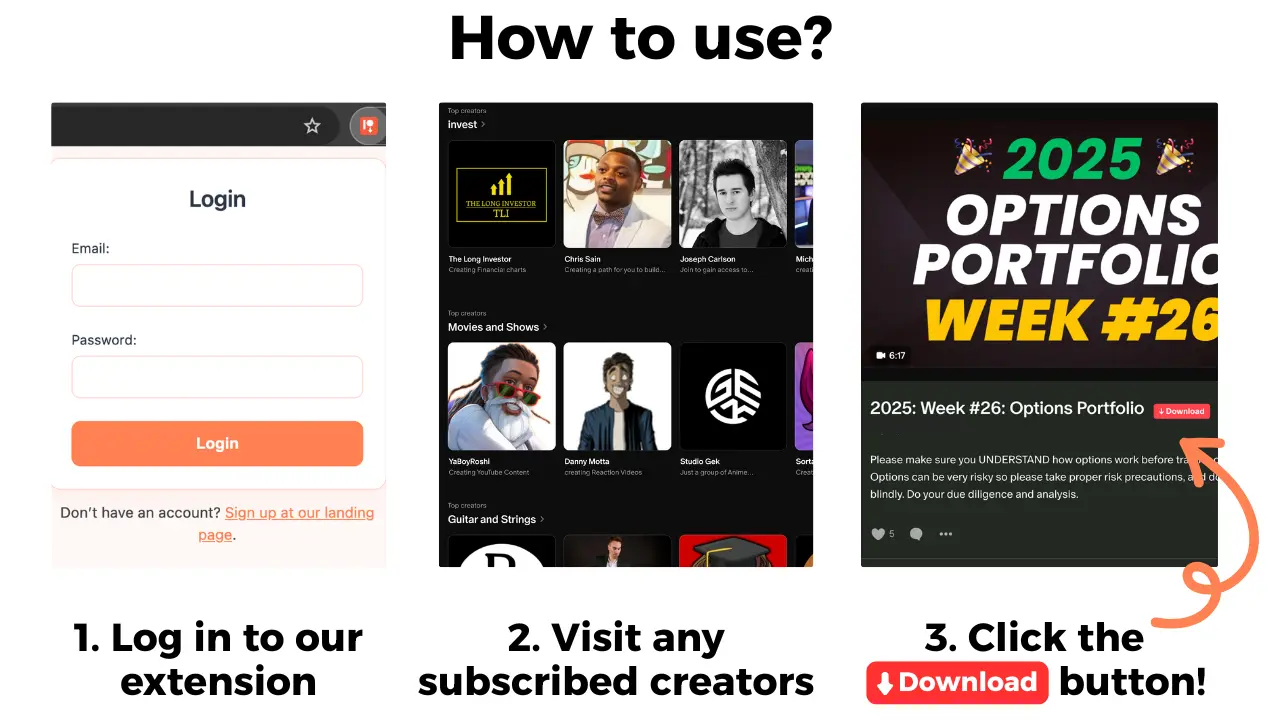
Patreon Media Downloader is a Chrome extension that adds a red download button to Patreon posts you can already open. Its verified capability is saving supported Patreon video as MP4 for 5 credits per file, and supported audio as MP3 for 3 credits. Its documented 7-day free trial includes 15 credits with no upfront payment; unless canceled, it converts to the Standard plan afterward. These are download facts, not subtitle features.
The verified product specification does not promise SRT downloads, subtitle extraction, transcripts, caption embedding, translation, batch exports, or access to locked posts. It also does not download embedded YouTube videos, shop products, file attachments or images. Do not interpret a missing .srt beside your MP4 as a software malfunction without first establishing that subtitle export was ever supported.
If your saved MP4 plays but you cannot see subtitles, test it in a trusted media player and inspect any subtitle menu the player actually has. A subtitle menu that displays no tracks does not prove that Patreon has removed your access or that an extension failed. To diagnose an MP4 that will not play at all, use our Patreon video download troubleshooting guide; playback errors and caption availability are separate issues.
Try Chrome Live Caption for accessible playback
Google documents a browser accessibility feature called Chrome Live Caption, which generates on-screen text for supported audio playing in Chrome. On a Windows or Mac desktop, open Chrome Settings → Accessibility → Live Caption. Depending on the Chrome version and your device, language-pack options may appear. Start an authorized video in a Chrome tab with audible sound and look for the movable caption bubble.
This is a practical option when the player has no usable captions, especially for understanding speech as you watch. You can try it with the original Patreon webpage or with media opened in a Chrome tab if that browser can play the file. The feature belongs to Chrome; it is not a Patreon Media Downloader feature, and it cannot grant access to a locked post.
Google says Live Caption processes audio and captions locally. Live Translate is a different setting and may send caption text to Google for translation. Review the corresponding privacy controls rather than assuming that translation and local caption generation follow the same data path.
Live Caption is not a guarantee of a transcript. The text bubble is designed for viewing while audio plays and should not be presented as an export of the creator's caption track. Accuracy can decrease with overlapping voices, quiet recordings, music, jargon and unsupported languages. Check important terms manually or request a creator-supplied written version.
Ask the creator for an accurate transcript
When you need captions for accessibility, study notes or searching a long instructional video, asking the creator for an existing transcript may be more effective than troubleshooting an MP4. Many creators respond constructively to a precise request that identifies the post, spoken language and accessibility problem. Do not assume that a creator is obligated to provide a subtitle file, but explain what would help you use a post you already have access to.
For example, ask whether they can enable the native player's automatic captions, review technical terms, upload a custom SRT or VTT track, or share a text summary if one already exists. Avoid requesting unrestricted download links or redistribution permission implicitly. A transcript can help with study, but a summary is not an exact substitute for accurate captions.
If the post is part of a series, keep your own private note of the episode title, what was hard to hear, and which caption option you tried. That makes a support message actionable and avoids a long exchange of guesses. If you need offline playback on another device, our guide to transferring authorized Patreon files to a phone covers file movement, not generating caption tracks.
When you see a video presented in the Patreon app rather than a web browser, look for the app's own playback controls. Patreon's member app guide documents caption controls for supported native video, including on Android TV. Device availability can differ, so use the player that actually offers an accessible viewing option instead of forcing a file workflow.
Limits, privacy and the short version
Captions cannot fix a file that never downloaded properly. Downloading a video cannot manufacture captions that its publisher did not make available, and automatic speech recognition should not be treated as a precise legal, medical or educational transcript. Keep local member-only files private, respect the creator's rights, and avoid uploading paid audio or video to unknown online caption services without permission.
The short version: Start with the original authorized Patreon player and check for available captions. If you need on-screen accessibility but no track exists, try Chrome Live Caption or request an accurate transcript from the creator. A supported MP4 download is useful for permitted offline video playback, but subtitle export is not part of the downloader's verified capabilities.