Patreon Notifications Not Working? Check Email and App Alerts
Diagnose missing Patreon notifications with separate checks for email, app alerts and device permissions. Test one change at a time and record useful evidence.
If Patreon notifications are not working, first identify what is missing: an email, a phone alert, or the post itself. Check the relevant notification settings and mailbox or device permissions separately. Then test one change against a future relevant post. A silent phone does not prove that your membership ended or that a creator deleted content.
This guide is a member troubleshooting routine, not a promise that every post produces an alert. It helps you gather useful evidence without repeatedly changing settings, paying again, or treating a download extension as a notification repair tool.
If the community server opens but a member channel is missing, use the Patreon Discord role checklist to check access separately from alerts.
Identify one missing alert
Choose one concrete example instead of starting with “nothing works”. Record the creator, post link, publication time and the channel you expected. Note whether another creator's alerts still arrive. That comparison can narrow your investigation without proving a particular cause.
Open the post directly while signed into the account you normally use. Record whether it opens, shows a locked page, or cannot be found. Keep content access separate from notification delivery. A readable post with no email is a different problem from a locked post reached through a working email.
| What you observe | Start here | Useful comparison |
|---|---|---|
| Post opens, email missing | Mail preferences and folders | Another recent creator email |
| Email arrives, phone stays silent | App and device settings | Notification visible inside the app |
| Alert arrives, post is locked | Account and membership access | The same link while signed in |
| An older post is hard to locate | Direct creator page | Known title and original date |
If locating the page is the real issue, use the guide to finding older Patreon posts. Do not keep adjusting notifications after discovering that you were searching the wrong creator or expecting an unpublished lesson.
Check email without disabling everything
Open your member settings and review email notifications. Patreon's email preference guide explains the available controls. Follow any save control shown, then reopen the page to confirm the intended setting remains selected.
Before changing anything, write down the original state. Change only the relevant preference. Turning off every category makes it harder to establish which change helped, and turning everything on may create more noise than you want.
Search your mailbox for the creator and Patreon. Check spam and other automatically sorted folders. Patreon's missing email guidance also identifies official senders and suggests contacting a private email provider when filtering persists.
Prefer the current official sender list over a copied list from an old forum. Do not disable your mailbox's overall spam protection. If asking an administrator to investigate, provide the expected time and message category, not your password or a verification code.
Separate app preferences from phone permissions
An app preference and a phone's permission are two different places to inspect. Patreon's push notification guidance recommends checking both. Menu placement can differ by app version, so look for notification settings rather than relying on an old screenshot.
First inspect the app's notification preferences. Then open the device's settings for Patreon and check whether notifications are permitted. Record each result independently. “Enabled in the app” is not a complete description of the device permission.
Also note the phone's condition during your test: whether it was online, whether you were using the app, and whether a quiet mode was active. These observations are diagnostic context, not proof that any one device feature caused the missing alert.
Avoid reinstalling the app as your first experiment. Start with settings you can inspect and reverse. If the basic checks do not help, use Patreon's current app troubleshooting guidance or contact support with your recorded example.
Run a small, honest delivery test
Use the next relevant post as a test rather than assuming old notifications will be resent. You cannot manufacture a creator's publication schedule. If no suitable post appears, keep the result marked “not yet tested” instead of declaring the problem fixed.
Write a short record with five fields: post link, publication time and time zone, email result, phone result, and the setting you changed. Use “arrived”, “not observed” or “not tested”. An exact observation is more useful than an unexplained pass or fail.
For example, you might record that the email arrived but no phone banner appeared, while the post opened normally. That points the next investigation toward the phone alert path. It does not establish an outage or mean that the creator failed to publish.
Test one change at a time. If you adjust email preferences, device permissions and mailbox rules together, you may regain alerts but lose the ability to identify the cause. Keep the smallest useful change and restore unrelated settings you changed experimentally.
Reduce noise without losing your routine
Once delivery is understood, decide which updates actually need an interruption. A weekly lesson and a live event may deserve different personal habits. Keep a short list of creators you want to check regularly, especially while a notification problem remains unresolved.
Email sharing is a separate concern. Patreon's creator email sharing explanation distinguishes sharing your address from notification preferences. Do not use a privacy toggle as a substitute for diagnosing missing alerts.
For important material, make a private note of the verified post link and your next action. Avoid copying entire paid posts into shared calendars or public task lists. A title, link and personal reminder are usually enough to return to your own reading.
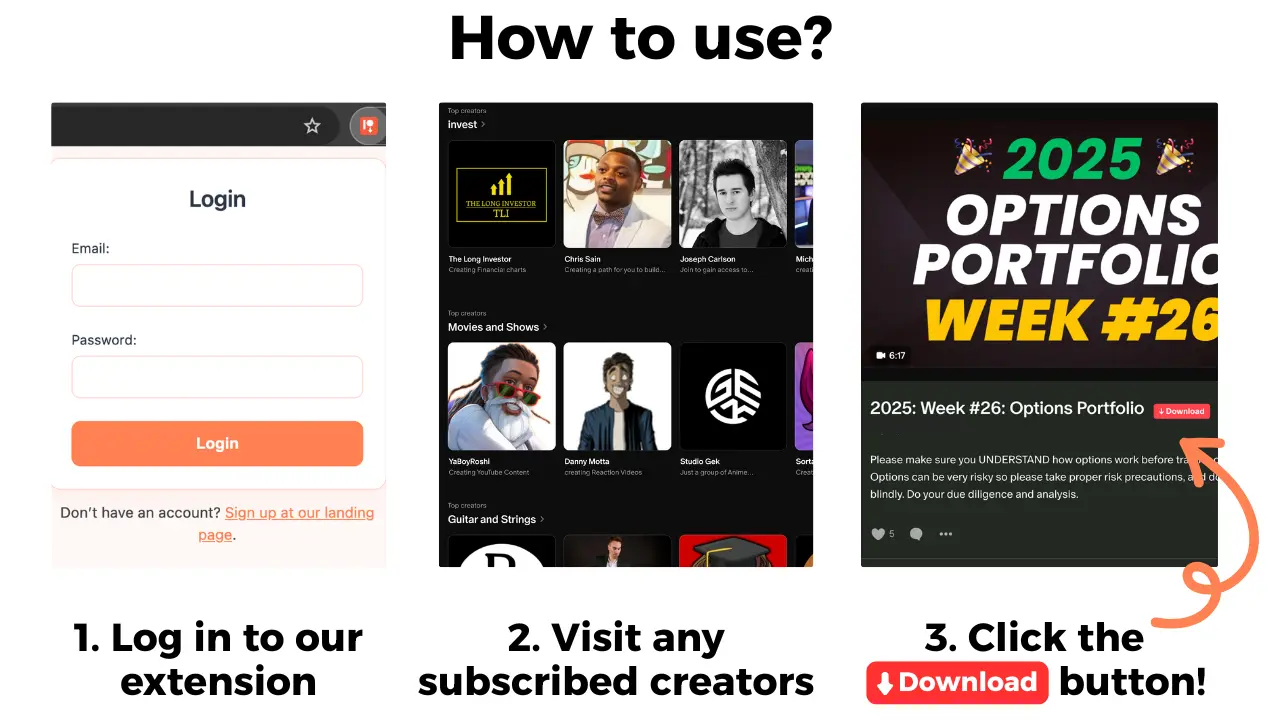
If you also want an offline copy, Patreon Media Downloader supports accessible video and audio posts as MP4 and MP3. It does not restore alerts or unlock posts. Check the download overview only after confirming access and the creator's permissions.
Escalate with evidence and clear limits
If the problem continues, send support a concise description of one reproducible example. Include your app version, device type, approximate time with time zone, affected notification channel, and checks already performed. Share private account details only through the official support process.
A useful report says: “This post opens in my account. I expected an email, searched the relevant mailbox folders, checked the preference, and did not observe delivery.” Avoid claiming that every member is affected based on your own inbox.
Ask the creator about a specific missing benefit when necessary, but do not ask them to troubleshoot your entire mailbox. Separate the question “Was this lesson published for my membership?” from “Why did my phone not alert me?”
Keep a direct checking routine until a later test confirms delivery. If the post itself plays but cannot be saved, use audio download troubleshooting for that separate symptom. Notification delivery, membership access and offline files each need their own evidence.
Frequently asked questions
Does a missing notification mean my membership ended?
No. Open the relevant post while signed in and check access separately. A missing alert alone does not establish a membership or payment problem.
Will changing notification settings resend old alerts?
Do not assume it will. Use an upcoming relevant post to test delivery, and visit the creator page directly for anything you may already have missed.
Does disabling email sharing stop Patreon notifications?
No. Patreon describes creator email sharing and notification preferences as separate settings. Review the notification controls for delivery problems.
Can Patreon Media Downloader repair notifications?
No. The extension saves supported accessible audio and video posts. It does not manage emails, phone notifications or membership access.
For a privacy review of current and future subscriptions, follow the creator email sharing checklist.