Who Can See Your Patreon Memberships? Check Profile Visibility
Review Patreon public and community visibility, choose the controls that match your account, and verify saved settings without assuming your whole profile is hidden.
To check who can see your Patreon memberships, open your privacy settings and first identify whether you use a fan account or a creator account. Patreon documents different controls for these accounts. Review public visibility and community visibility separately, save your choices, then inspect the public profile you actually share.
This guide gives you an audience checklist and a verification record. It helps you avoid treating one saved toggle as proof that every part of your presence has disappeared.
Name the audience before changing settings
“Make my Patreon private” can mean several things. You might want to keep a membership off your public page, limit how activity is highlighted, remove an unwanted social link, or control what fellow community members see. Write the particular outcome before choosing a setting.
Patreon's public profile explanation distinguishes the public profile from community information. A public profile URL can be opened directly. The community profile guide explains the separate member audience.
| Your concern | Review first | What the check establishes |
|---|---|---|
| Membership shown publicly | Applicable membership or public-profile control | Your saved public visibility choice |
| Activity highlighted to others | Account's activity or community controls | The option you selected for that audience |
| Personal name, image or bio | Profile basics | The identity details you supplied |
| An unwanted social link | Connected social links | Whether that link is displayed |
| Creator sees your email | Email sharing settings | A separate sharing preference |
If email is your concern, use the email sharing guide. Avoid changing multiple unrelated preferences together when you want to understand which setting affected a specific display.
Match the instructions to your account
For a fan without a creator page, Patreon documents Full public profile and Community profile controls. Creator accounts have Membership & activity visibility controls instead. Check the labels in your own settings rather than copying a creator's screenshot into a fan-account procedure.
For creators, the visibility controls guide covers global membership display, activity highlighting and individual creator choices. Turning off the global membership display also overrides individually visible memberships. Do not expect a hidden-by-default setup with selected public exceptions when that global control is off.
If your screen differs, record the account type and the labels you see. Check the current help article before making a change whose effect you cannot explain. A missing setting is a reason to identify the correct account route, not to combine profiles or cancel a membership experimentally.
Keep a short before-and-after record: date, account type, relevant setting label, intended audience and saved choice. You do not need to place your full membership list in a shared document. Keep the record private, especially if it contains details you are trying to limit publicly.
Review the profile details around the membership
A membership setting does not remove every identity detail. Inspect your chosen profile name, image, bio and connected links. Decide whether they are suitable for the audience that can view the page. A nickname may still identify you when it is also used on other sites.
Use a concrete review question for each item. Does the bio include a workplace you no longer want to display? Does a social link point to a personal account? Is the image one you intended to use publicly? These questions produce clearer edits than trying to judge the whole profile at once.
Also consider how you share your own material. A screenshot of a lesson comment or account menu can reveal profile details even after you have reviewed settings. Crop a troubleshooting screenshot to the relevant message and inspect the crop before posting it elsewhere.
Patreon describes some profile information as visible when you participate in communities. Do not assume a reduced profile display makes every comment anonymous or removes all previous interactions. For an unclear case, ask support about the specific field and audience you are concerned about.
Save and verify within the limits of each view
- Identify the exact audience and field in your private review record.
- Open Privacy from your account settings and inspect the applicable controls.
- Make the intended selection and use the save control shown.
- Reopen the settings and confirm the choice persisted.
- Open your public profile in a signed-out browser view where available, then record what you observed.
A public-page check should use the profile URL, not a screenshot from your signed-in settings. The settings page is an editing view. If the public page is unavailable or requires a login, record that limitation rather than concluding that nobody can see it.
A signed-out view cannot establish what another paid community member sees. Keep that question separate. Review the community settings and official documentation, and mark any untested audience as unverified. Do not create a new paid account just to manufacture a check.
After a change, record one observation at a time. For example, note that a social link is absent from the public page while a display name remains. That is more useful than “privacy fixed,” because it tells you exactly what you verified and what you still need to examine.
Keep learning records private too
Your own notes can become another route for disclosure. Keep a personal list of creator post links and next lessons without publishing membership screenshots or copying other members' comments into shared notes. The post discovery guide can help organize what you want to revisit.
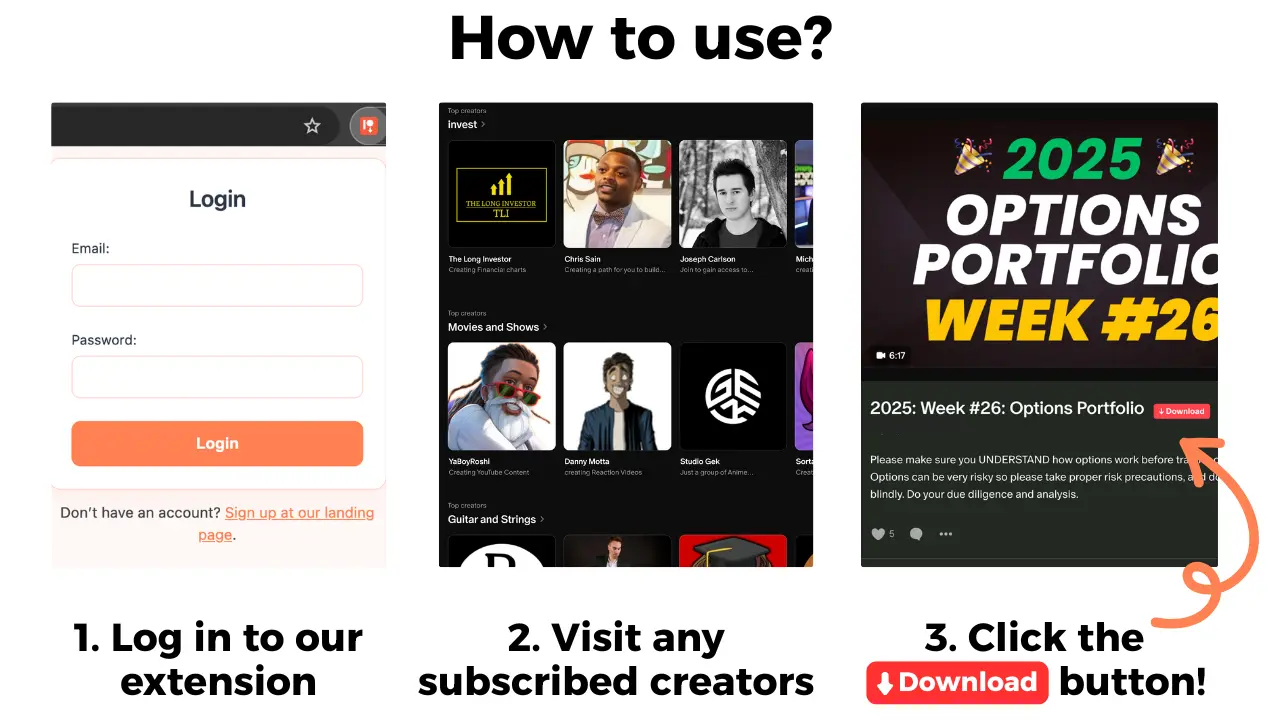
For permitted offline study, Patreon Media Downloader saves supported accessible video posts as MP4 and audio posts as MP3 in Chrome. It does not change profile visibility, erase community activity or make a shared document private. Confirm access and permission before retaining media.
If you contact support, include the account type, field, audience, saved option and observed result. Remove passwords, login codes and billing details. Ask a narrow question such as whether a specific field is visible to the public or to fellow members, rather than requesting an undefined promise of total anonymity.
Common questions
Why do I see different settings from a creator's screenshot?
Patreon documents different controls for fans without a creator page and for creator accounts. Follow the guidance that matches your account.
Does hiding memberships remove my entire public profile?
No. Review your profile basics and connected links separately. A membership visibility choice does not establish that every profile detail is hidden.
Can a signed-out check show what paid community members see?
No. It only helps inspect the public page. Community visibility needs its own review using the applicable settings and official guidance.
Can the downloader change profile privacy?
No. It saves supported accessible post video as MP4 and audio as MP3. Manage profile visibility inside Patreon.
The short version
Choose the audience and information you want to control, then use the settings that match your account. Confirm the saved choice and inspect the public page, while keeping any untested community view clearly marked for follow-up.