Patreon Discord Role Missing? Check Your Member Access
Find out why your Patreon Discord role is missing. Check the linked account, tier, server and channels, then send the creator a useful support report.
If your Patreon Discord role is missing, check the membership account, the tier's Discord benefit and the Discord account linked to Patreon before paying again or changing servers. Then distinguish a missing server from a missing member channel. Those symptoms need different evidence, and some fixes require the creator rather than the member.
This guide gives you a controlled access check and a support report you can reuse. It does not promise immediate role assignment or access to benefits outside your membership. Work through one creator and one expected channel first, so the result remains easy to explain.
Identify what is actually missing
In Discord, a server is the community space, a channel is a discussion area within it, and a role can affect what you may access. Patreon's member introduction to Discord explains this distinction. Seeing the community name alone does not tell you whether the intended member benefit works.
Write down one concrete expectation: for example, “I expected the workshop discussion channel for my current tier.” Compare it with what you actually see. Do not assume a channel mentioned in an old announcement still has the same name or belongs to every tier.
| Observation | First comparison | Record for support |
|---|---|---|
| Creator server is absent | Eligible server shown in Patreon settings | Creator and connection state |
| Server opens, member channel is absent | Tier benefit and expected role | Channel name and tier |
| Role appears, one channel is inaccessible | Creator's current channel instructions | Exact channel and error |
| Patreon post itself is locked | Membership account and post access | Post link, separately from Discord |
Keep notification problems separate. If the channel opens but your phone stays silent, the missing-role diagnosis may not apply. For Patreon alerts specifically, use the email and app notification guide.
Confirm eligibility before changing anything
Check the creator's membership page while signed into the account that holds your membership. Read the actual tier description, not just an advertisement or a community invitation. Patreon's missing-role guidance recommends confirming the Discord benefit and ensuring the connected account matches the account used in Discord.
Record the tier name exactly. If the benefit wording is unclear, ask the creator what access it includes before changing your payment or tier. A receipt is useful evidence of a transaction, but it is not a map of the creator's Discord channels.
Check billing history separately. Patreon notes in its member troubleshooting guidance that a declined payment can affect roles. If there is a declined charge, use the account's official payment controls. Do not post payment details in a public Discord channel.
Also record whether you recently changed accounts or membership details. Treat timing as context, not proof of a cause. Avoid changing several things together: reconnecting, joining a different tier and switching Discord accounts at once makes it difficult to tell which action mattered.
Connect the intended account and test one server
Use Patreon's Discord access instructions for the current interface. Its account settings show eligible servers after connection, with a control to join. Menu placement can change, so follow the setting labels you actually see rather than copying an old screenshot.
- Open Patreon as the member whose tier you checked, and find the connected apps settings.
- Inspect the Discord identity shown. Compare it with the account currently open in your Discord app or browser.
- If connection is needed, use Patreon's Discord connection control and review the authorization screen for the intended account.
- Join the eligible creator server from the provided control, then open Discord and check the expected channel.
- Record the time, account identity and result before attempting another change.
An account comparison is especially useful on a shared computer. You may be looking at one Discord session in a browser and another in the desktop app. Check rather than assuming the last account you remember using is still active.
If authorization does not open, inspect whether the browser blocked its popup. Allow the necessary official flow, then restore any temporary browser changes. Avoid turning off protection for unrelated sites.
If a previously connected account still fails, Patreon's troubleshooting guide includes disconnecting and reconnecting, with signing out and clearing the relevant browsing data. Before doing that, make sure you can sign back in. Clearing cookies can end sessions; it is not a harmless way to refresh every account at once.
Know when the creator needs to investigate
After checking your account and eligibility, repeated reconnecting may add noise without helping. Send the creator a concise report through their established support route. Patreon's creator troubleshooting guide covers role placement and integration configuration that ordinary members cannot fix themselves.
Include the creator page, your tier, Discord username, expected channel, what you can currently see and the time of your last test. State whether the server is missing entirely or only a channel is missing. A cropped screenshot can help, provided it hides unrelated conversations and private account details.
A useful message is: “My current tier is [name]. Patreon shows Discord account [username]. I can open [server], but cannot see [channel]. I checked the account connection at [time and time zone]. Can you confirm the expected role and channel for this tier?”
Do not send passwords, login codes or full card information. If the creator needs to inspect membership records, use their normal private support process.
An offline bot indicator alone is not proof of failure. Patreon's integration setup documentation explains that the bot can appear offline and still function. Ask about the observed missing access, not just the indicator.
Keep community access separate from saved media
A Discord role controls community permissions; a saved media file does not establish membership access. Keep a private note of the creator, tier and useful post links, but do not use another member's login, invite or files as a workaround for unavailable benefits.
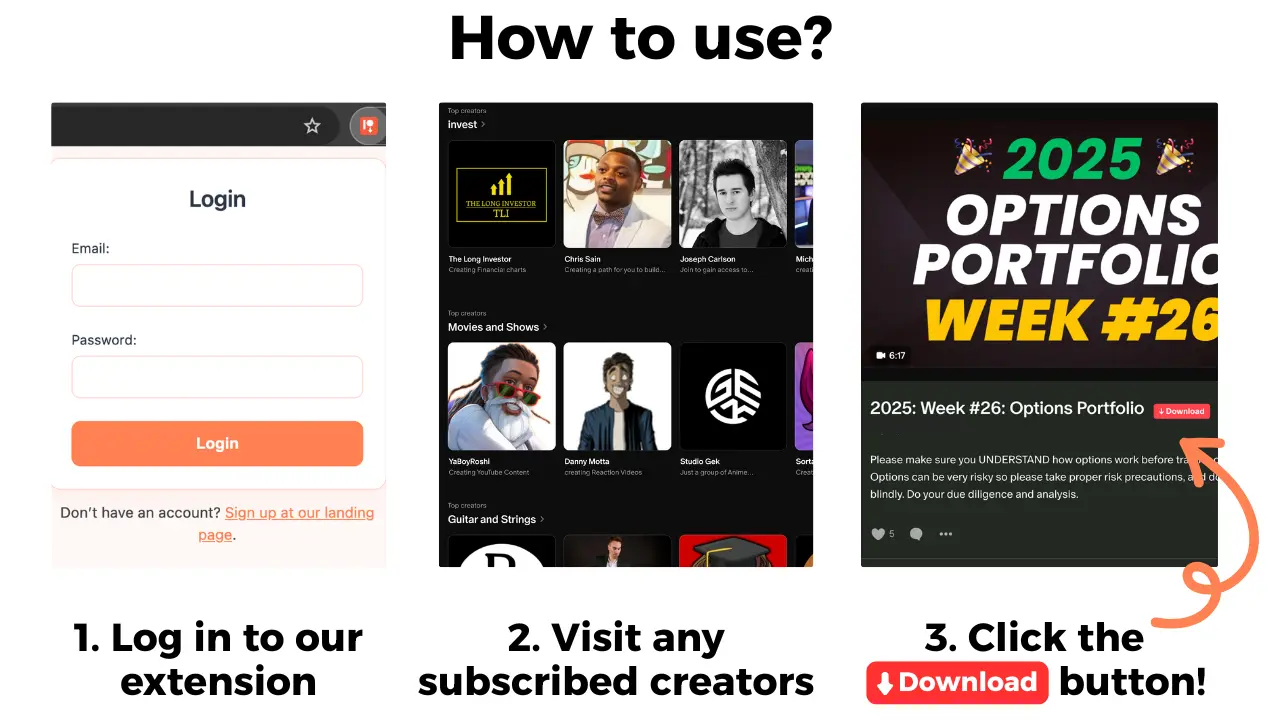
Patreon Media Downloader is a separate Chrome extension for supported accessible Patreon posts, saving video as MP4 and audio as MP3. It does not manage Discord accounts, assign roles, download Discord conversations or unlock paid channels. Installing it is not a step in repairing this problem.
If your next task is locating a lesson on Patreon, use the older post discovery guide. Keep that task separate from confirming discussion access. A lesson opening successfully does not prove that a Discord role is correct, and a missing channel does not prove the lesson was deleted.
Common questions
Does joining a Discord server prove I have my paid role?
No. Server membership and channel access are different observations. Check the expected member channel and ask the creator which role belongs to your tier.
Should I pay again if my Discord role is missing?
Do not make a second purchase as a troubleshooting shortcut. First check your existing membership, billing status and connected Discord account.
Does an offline Patreon bot prove the integration is broken?
No. Patreon says the bot may appear offline while still being able to assign roles. Report the actual access problem instead of relying on its status indicator.
Can Patreon Media Downloader unlock Discord channels?
No. It saves supported accessible Patreon video and audio posts as MP4 and MP3. It does not assign Discord roles or unlock channels.
The short version
Check the correct membership, Discord identity and expected channel in that order. Make one change at a time, then send the creator a factual access report if the benefit still does not work. Keep media downloading separate from community permissions.