How to Join a Patreon Live Workshop and Find the Replay
Prepare for a Patreon live workshop, check your access and start time, and find a creator-published replay without assuming every event is recorded for members.
To join a Patreon live workshop, open the creator's event link while signed into the account that has access. Check the event time and audience before it starts. Afterward, look for the creator's published replay post or announcement; attendance alone does not establish that a replay will be shared.
Use this guide to make one event record that covers preparation, joining and follow-up, especially when a workshop is part of a paid learning routine.
Check the event before planning your session
Start with the original announcement and event link. Record the creator, workshop title, date, displayed start time and access wording. If the announcement mentions a particular membership tier, compare it with the account you intend to use. A link forwarded by a friend is not evidence that your own account is eligible.
Patreon's member guide to joining a Live explains browser and app entry points. The creator page, feed, shared event link or an event notification can lead you there. Keep the original link so you have a direct route even if an alert never reaches your phone.
| What you see | What to check | Useful next action |
|---|---|---|
| Scheduled event or countdown | Date and displayed start time | Add a personal reminder |
| Membership access requirement | Account and eligible tier | Compare the creator's event description |
| Ticket purchase option | Whether you already bought access | Check your confirmation before paying again |
| Event has ended | Creator's replay announcement | Look for a published post |
Some creators offer ticketed Lives in a limited beta. Patreon's ticketed event FAQ describes this route. Avoid assuming that the same access arrangement applies to another creator or to the next event. If you have a gifted membership, check the tier currently active using the gift and existing subscription guide.
Prepare a link, a time and one question
Open the event in advance on the device you plan to use. Compare the displayed time with your calendar entry, including the date if the creator is in another time zone. A reminder with a copied title but no event link is harder to use when you are rushing between classes or work.
Write a small attendance card with the event link, access account, start time, one question and a replay follow-up field. Use the same card afterward to record whether you attended or are waiting for a recording. Keep account details private; the name you use to identify an account is enough for a personal reminder.
If the event offers an add-to-calendar control, inspect the resulting entry rather than assuming the import is correct for your plans. Include enough time to sign in and find the right page. This is a personal planning habit, not a guarantee that the creator will start at the scheduled minute.
For alerts, review the relevant creator's Live notification preferences. Patreon's Live notification help explains the available channels. For a delivery problem, follow the notification troubleshooting guide. Keep the saved event link as your fallback route.
Join and identify the actual symptom
- Open the original event link on the browser or app you plan to use.
- Confirm that the signed-in account matches the membership or purchase you checked.
- Read the current event state and complete any participation prompt shown.
- If you reach a waiting screen, compare the scheduled time with the latest creator update.
- When the session begins, keep your question and personal notes beside the event record.
Patreon documents a waiting room before a Live begins. Reaching that screen is different from seeing a requirement to buy access or join a tier. Record the actual wording before changing anything. Repeatedly paying, switching accounts and refreshing at once makes it difficult to tell which action was relevant.
If the page says you need access, compare the creator, event and account again. If the event should be included but still does not open, send the creator a specific report with the event link, expected entitlement and observed message. Remove billing details from screenshots.
If you enter successfully but cannot hear the session, start with the device's sound output and whether other audio works. Record that the event opened. It gives support a clearer starting point than saying that the entire membership is broken.
Find the replay and plan the next action
After the workshop, revisit the creator's page and announcement. The Live FAQ explains that the creator receives a recording draft and chooses whether to publish it. A recording existing in the creator's workflow does not mean there is already a public member replay.
Use clear follow-up states: replay posted and opens, announced but not posted, no replay information, or replay posted but access unclear. Only add a watching appointment once you have a real route or an explicit release plan. If none was promised, ask whether the creator intends to share one before building your study schedule around it.
When a replay is published, save its post link separately from the original event link. Add the part you want to revisit and one next action, such as trying a demonstrated exercise. The older-post discovery guide can help later when the replay has moved down the feed.
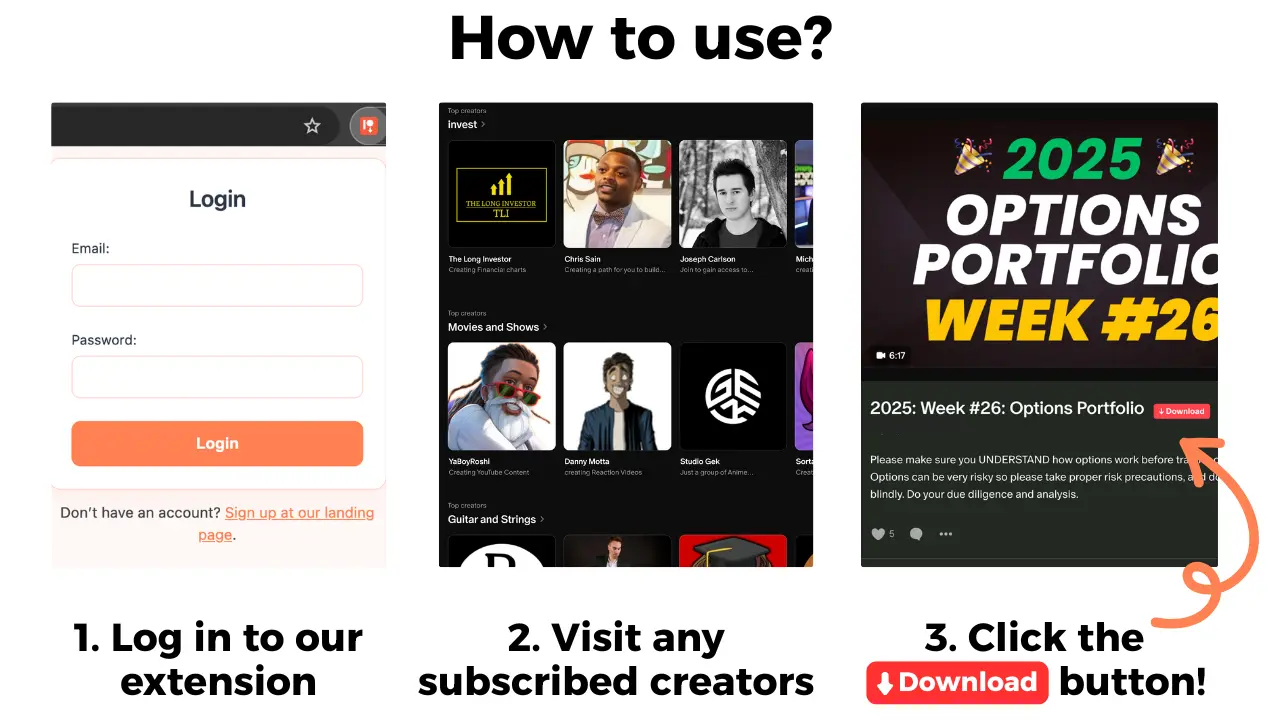
For a supported published post you can already open, Patreon Media Downloader saves video as MP4 and audio as MP3 in Chrome. Get permission to retain the material. Live recording, ticketed access, chat export and every replay format are not verified product capabilities.
If a replay includes chat, use it as context for the lesson rather than assuming it is part of any saved media file. Keep other members' private messages out of shared notes. An authorized personal copy and a public redistribution are different decisions requiring their own permission.
Common questions
Does joining a Live guarantee a replay?
No. Check the creator's announcement. A replay becomes available to members when the creator shares it.
Is a waiting room an access failure?
Not necessarily. A scheduled event may not have started. Compare the event time and the creator's latest announcement.
Does a Patreon membership include every Live?
No. Access depends on the event's audience and the creator's setup. Some creators offer ticketed events.
Can the extension record the live workshop?
Live recording is not a verified capability. It saves supported accessible post video as MP4 and audio as MP3. Check a published replay post separately.
The short version
Keep the original event link, verify access and time, and join using the eligible account. Afterward, confirm a published replay before scheduling your catch-up session or considering an authorized offline copy.